Principles Related to Software Version Control

Version Control
Version control is the practice of tracking and managing changes to software code. Version control systems are software tools that help teams manage changes to source code over time. They are even more useful for DevOps teams, as they help reduce development time and increase successful deployments.
Version control software keeps a record of all modifications to the code in a special type of database. If a mistake is made, developers can go back in time and compare earlier versions of the code to help fix the error while minimizing disruption to all team members.
But why is version control important?
There are many things that can take time in the development of new applications; reproducing bugs, learning new tools, and adding new features or content are just a few examples. As user demands expand, version control helps teams work together, saving time.
Benefits of Version Control
Create workflows
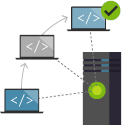
Version control workflows prevent the chaos of everyone using their own development process with different and incompatible tools. Version control systems provide process enforcement and permissions to keep everyone on the same page.
Work with versions
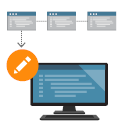
Each version has a description of what the changes do, such as fixing a bug or adding a feature. These descriptions help the team track changes in the code by version, rather than by individual file changes. Code stored in versions can be viewed and restored from version control at any time, as needed. Versions make it easy to base new work off any version of the code.
Code together

Version control synchronizes your commits and ensures that changes do not conflict with other people's changes. The team relies on version control to help resolve and prevent conflicts, even when people make changes at the same time.
Keep a history
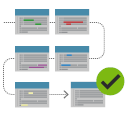
Version control keeps a history of changes as the team saves new versions of code. Team members can review the history to find out who, why, and when changes were made. The history gives teams the confidence to experiment, as it is easy to revert to a previous version at any time. The history allows anyone to work from any version of the code, such as fixing a bug in an older version.
Automate tasks
Version control automation features save time and generate consistent results. Automating tests, code analysis, and deployment when new versions are saved to version control are some examples.
So…
While it is possible to develop software without using any version control, doing so exposes the project to a high risk that no professional team would be advised to accept. So the question is not whether we should use version control, but which version control system to use.
To solve this possible problem, the market offers us several tools that can be used for this purpose (cvs, subversion, tfs, git, mercurial, among others). To find out which is the best according to your company's needs and demands, it is important to know each of them, as well as the advantages and disadvantages presented. Therefore I will not go into detail on each of them, but I will present the most widely used version control system in the world: git.
GIT

By far, the most widely used modern version control system in the world today is Git. Git is a mature, actively maintained open source project developed in 2005 by Linus Torvalds, the famous creator of the Linux operating system kernel. An impressive number of software projects depend on Git for version control, including both commercial and open-source projects. Developers who have worked with Git are well represented in the software development community and it works well on a wide variety of operating systems and IDEs (Integrated Development Environments).
Having a distributed architecture, Git is an example of a DVCS (Distributed Version Control System). Rather than having only one single place for the full version history of the software, as is common in once-popular version control systems such as CVS or Subversion (also known as SVN), in Git, every developer's working copy of the code is also a repository that can contain the full history of all changes.
The flexibility and popularity of Git make it a great choice for any team. Many developers and university students already know how to use Git. The Git user community has created resources to train developers, and the popularity of Git makes it easy to get help when needed. Almost all development environments have Git support and git command line tools are implemented on all major operating systems.
Git Basics
Whenever work is saved, Git creates a commit. A commit is a snapshot of all files at a point in time. If a file has not changed from one commit to the next, Git uses the previously stored file. This design differs from other systems that store an initial version of a file and maintain a record of deltas over time.
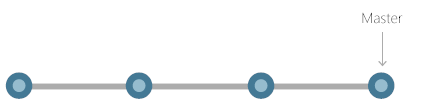
Commits create links to other commits, forming a graph of the development history. It is possible to revert the code to a previous commit, inspect how files were changed from one commit to another, and examine information such as where and when changes were made. Commits are identified in Git by a unique cryptographic hash of the commit's content. Since everything is hashed, it is impossible to make changes, lose information, or corrupt it without Git detecting it.
Branches
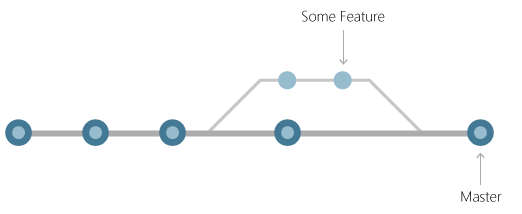
Each developer saves changes in their own local code repository. As a result, there can be many different changes based on the same commit. Git provides tools to isolate changes and then merge them back together. Branches, which are lightweight pointers to work in progress, manage this separation. Once the work created in a branch is complete, it can be merged back into the team's main branch (or trunk).
Files and Commits
Files in Git are in one of three states: modified, staged, or committed. When a file is first modified, the changes only exist in the working directory. They are not yet part of a commit or the development history. The developer must stage the changed files to be included in the commit. The staging area contains all the changes to be included in the next commit. Once the developer is satisfied with the staged files, the files are packaged as a commit with a message describing what changed. This commit becomes part of the development history.
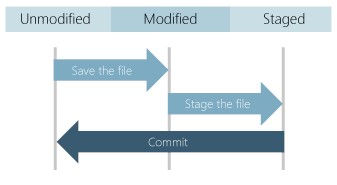
Staging allows developers to choose which file changes to save in a commit in order to divide large changes into a series of smaller commits. By reducing the scope of commits, it is easier to review the commit history to find specific file changes.
Let's Get to Practice…
Installing GIT
GIT for Mac
There are several ways to install Git on a Mac. In fact, if you have installed Xcode (or its command line tools), Git may already be installed. To check, open a terminal and type git — version.
If you have installed Homebrew to manage packages on OS X, follow these instructions to install Git:
$ brew install git
Verify the installation was successful by typing git — version:
$ git — version
Configure your Git username and email using the following commands, replacing the name Emma with your own. This information will be associated with any commits you create:
$ git config — global user.name "Any Name"
$ git config — global user.email "your@email.com"
GIT for Windows
Download the latest installer from Git for Windows.
When you have successfully started the installer, you will see the Git Setup wizard screen. Follow the Next and Finish prompts to complete the installation. The default options are pretty sensible for most users.
Open a command prompt (or Git Bash if during installation you opted not to use Git from the Windows Command Prompt).
Run the following commands to configure your Git username and email, replacing the name Emma with your own. This information will be associated with any commits you create:
$ git config — global user.name "Any name" $ git config — global user.email "your@email.com"
GitHub
By far, the largest host for Git projects in the world is GitHub. GitHub provides much more than just Git hosting. GitHub has features that span the entire DevOps process, including a marketplace of partner products and services.
Setting Up a GIT Repository
A Git repository, or repo, is a folder in which Git tracks changes. There can be any number of repositories on a computer, each stored in its own folder. Each Git repository on a system is independent, so changes saved in one Git repository do not affect the content of another.
A Git repository contains all versions of each file saved in the repository. This differs from other version control systems that store only the differences between files. Git stores file versions in a hidden .git folder alongside other information needed to manage the code. Git saves these files very efficiently, so having a large number of versions does not mean it uses a lot of disk space. Storing each version of a file helps Git merge code better and makes it easier to work with multiple versions of code.
Developers work with Git through commands issued while working in a local repository on the computer. Even when sharing code or receiving updates from the team, it is done through commands that update the local repository. This locally-focused design is what makes Git a distributed version control system. Each repository is self-contained and the repository owner is responsible for keeping it up to date with changes from others.
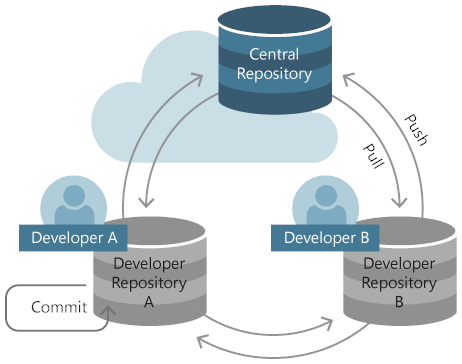
Most teams use a central repository hosted on a server that everyone can access to coordinate their changes.
Create a New Git Repository
You have two options for creating a Git repository. You can create one from code in a folder on a computer or clone one from an existing repository. If you are working with code that is only on the local computer, create a local repository using the code in that folder. But most of the time, the code is already shared in a Git repository, so cloning the existing repository to the local computer is the recommended way to go.
Create a New Repository from Existing Code
Use the git init command to create a new repository from an existing folder on the computer. At the command line, navigate to the root folder that contains the code and run:
git init
to create the repository. Then add all the files in the folder to the first commit using the following commands:
git add — all
git commit -m "Initial commit"
Clone an Existing Repository
To get a full copy of another user's repository, use git clone like this:
$ git clone https://github.com/USERNAME/REPOSITORY.git
Create Branches on GitHub
When you create branches, you generate different versions of a repository. When you modify the project in feature branches, a developer can see how it will affect the main project when everything is integrated.
Go to your new repository. Click on the main button and enter the name. Click on Create branch.
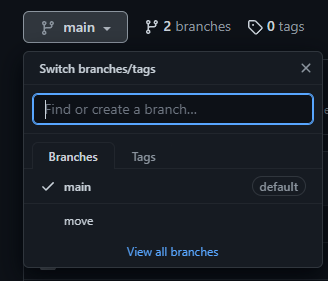
You have now created a new feature branch that is identical to the master branch. You can start making changes freely without affecting the main project.
How Commits Work on GitHub
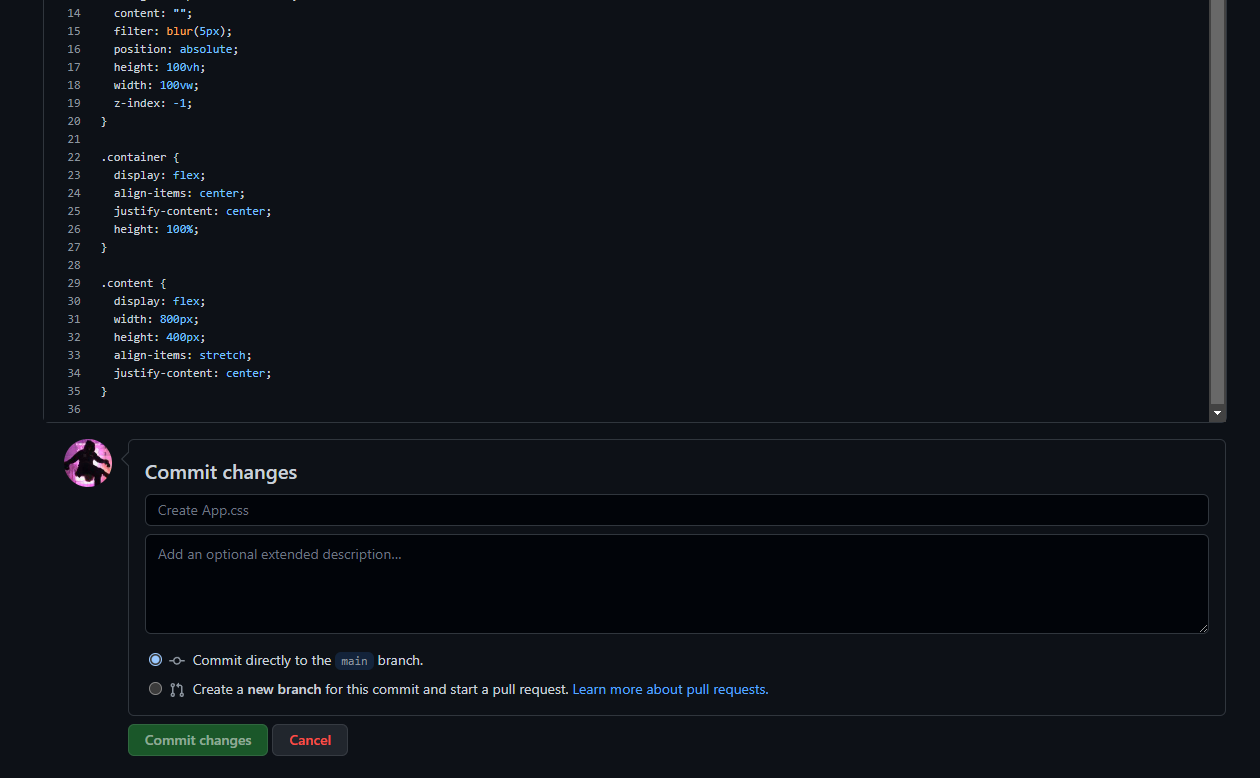
Commits are what saved changes on GitHub are called. Every time you change the file in the feature branch, you will need to perform a Commit to keep it.
Access the feature branch by clicking on main and selecting your newly created branch from the dropdown menu.
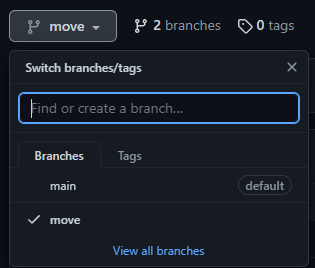
To edit, click on the "pencil icon" and start modifying the file. Once finished, write a brief description of what changes were made. Click on Commit Changes.
Create Pull Requests on GitHub
To propose the changes you just made to other developers working on the same project, you must create a pull request. They are what makes it so easy to work together on projects, as they are the primary collaboration tool on GitHub.
Pull Requests allow you to see the differences between the original project and your feature branch. This is how you ask your peers to review them. If other developers approve the changes, they can execute a merge pull request. This will apply the changes to the main project.
GitHub and the command line…
Basic Git Commands
To use Git, developers use specific commands to copy, create, change, and combine code. These commands can be run directly from the command line or using an application like GitHub Desktop. Here are some common commands for using Git:
-
git init initializes a new Git repository and starts tracking an existing directory. It adds a hidden subfolder within the existing directory that contains the internal data structure required for version control.
-
git clone creates a local copy of a project that already exists remotely. The clone includes all files, history, and branches of the project.
-
git add stages a change. Git tracks changes to a developer's codebase, but it is necessary to stage and take a snapshot of the changes to include them in the project's history. This command performs the staging, the first part of the two-step process. Any changes that are staged will become part of the next snapshot and part of the project's history. Staging and committing separately gives developers complete control over the history of their project without changing how they code and work.
-
git commit saves the snapshot to the project history and completes the change-tracking process. In short, a commit works like taking a photo. Any item that has been staged with git add will become part of the snapshot with git commit.
-
git status shows the status of changes as untracked, modified, or staged.
-
git branch shows the branches being worked on locally.
-
git merge merges lines of development. Generally, this command is used to combine changes made in two distinct branches. For example, a developer would merge when they wanted to combine changes from a feature branch into the main branch for deployment.
-
git pull updates the local line of development with updates from its remote equivalent. Developers use this command if a teammate has made commits to a remote branch, and they would like to reflect those changes in their local environment.
-
git push updates the remote repository with all commits made locally on a branch.
Conclusion
Throughout the article, we saw how important it is to maintain an up-to-date and cohesive system, following software versioning standards for this purpose.
This standard allows us to efficiently manage changes and possible problems that may arise in the course of projects, and for this we can use powerful tools that help us publish, maintain, and control the entire flow of features, bug fixes, and changes that will demand our project.
Here we presented the most widely used one in the world, being free software that is in constant development evolution.
References
https://docs.github.com/pt/get-started/quickstart/hello-world
https://learn.microsoft.com/pt-br/devops/develop/developing-modern-software-with-devops
https://www.atlassian.com/br/git/tutorials/learn-git-with-bitbucket-cloud